
The yuletide season is finally upon us, a moment that is most characterised by snowflakes, warmth and memories. It’s only natural that you would want to be able to capture and sustain these memories in the best way possible.
So in this article, I’m going to show you 6 photo tips and tricks that you can try with your iPhone that are sure to level up your Christmas, and help you capture the best moments now and after Christmas.
 Use Night Mode for Beautiful Christmas Lights
 Use Night Mode for Beautiful Christmas Lights
Apple iPhones have been designed with a range of features and modes that can help you optimise your experience in various scenarios, and Night Mode is one of those features that you should utilise more often.
The night mode feature on iPhones enables them to take clear shots in dim or low-light environments with minimal difficulty. This is precisely the nature of the Christmas environment: tree decorations and dim lights that create that magic feeling unlike any other.
You can easily use this feature to your advantage by using it at night. Perhaps on an outing with friends and family or indoors. Either way, this feature means that you can capture them against the bright Christmas lights without losing much of the photo’s quality.
You could also be creative with it and use it when taking photos of things such as the Christmas tree, candles, cosy rooms, and outdoor lights to share your setup with those around you or to simply make the moment extra special, regardless of the darkness of night.
When using this feature, ensure that your hands are steady, or you could use a stable surface like a table, a tripod, or maybe a gimbal stick if you happen to have something like that.
Create Light Trails with Long-Exposure Live Photos
The live photo feature on the iPhone can be activated with a simple press of a button. You probably have seen it before but ignored it. Or maybe you have goofed around with it a little here and there.
Well, here’s how you can use it and the long exposure to get the most out of your camera this season.
- Open the Camera app and make sure Live Photo is on, tap the Live icon (the circle with dashed lines) so it’s active.
- Frame your shot and hold the iPhone as steady as possible. Live Photos capture about 1.5 seconds before and after you press the shutter, so steady hands help the effect look smooth.
- Tap the shutter to take the Live Photo.
- Open the Photos app and find the Live Photo you just took.
- Tap the word Live in the upper-left corner of the image to open the Live Photo options.
- From the menu that appears, choose Long Exposure. The phone will process the frames and create a new long-exposure image.
Your new photo is saved to your library and also appears in Photos > Albums > Media Types > Long Exposure.
That said, if you want to get the very best out of this feature, then use a tripod or rest your phone on a stable surface when possible for the smoothest light trails. You could also try using the timer (3s or 10s) to avoid camera shake from pressing the shutter.
Feel free to experiment with different subjects: sparklers, moving Christmas lights, car light trails, or flowing water, as well as see just how best you could make use of this feature.
Shoot Through Decorations for Holiday Atmosphere
Let’s be honest, nothing says Christmas season quite like a frame that shows it, but we also don’t like the digital frames that some apps come up with, largely because they don’t feel natural. Well, this next tip should add some originality to your photos if applied correctly.
This is what we call a foreground blur, and here’s how to do it:
- Launch your iPhone’s Camera and switch to Portrait mode, since this mode is designed to create depth and blur effects.
- Hold a small object (like a Christmas ornament, ribbon, fairy lights, or even your hand) very close to the edge of your camera lens, about 1–3 inches away.
- Keep it slightly out of frame or just barely visible.
- Move your main subject (a person, a decoration, a gift box, etc.) a little further away, ideally, a few feet from the camera. Portrait mode works best when the subject and foreground object have a noticeable distance between them.
- Now tap on your subject on the screen. This tells the iPhone where to focus, causing the object near the lens to become beautifully blurred.
- If the blurred object is catching too much light, slightly shift your angle so it becomes softer. Light hitting the close object can create dreamy bokeh, especially with Christmas lights.
- When the subject is sharp, and the foreground object is soft and hazy, press the shutter. The iPhone will automatically apply the depth effect.
Fine-Tune the Blur (Optional)
- Open the photo in Photos > Edit.
- Adjust the f-stop slider (ƒ) to increase or decrease the background/foreground blur strength.
This tip can easily help you with getting that dreamy picture that you hope to capture. You could choose anything from garlands to fairy lights or the branches of a Christmas tree to create a warm holiday glow.
Use the Ultra-Wide 0.5x Lens for Group Photos
The ultra-wide lens on the iPhone is another of its useful features that you can make the most of this yuletide season. Firstly, this allows you to get everyone in the frame so that no one is left out of the memory.
It also works pretty well indoors without compromising on the quality of the photos taken. It’s the perfect feature for those who spend the holiday with friend groups and family members.
And don’t worry, using ultra-wide doesn’t automatically mean “less-quality”.
Use Fairy Lights as Soft Lighting
Fairy lights often act as a good source of soft lighting to help alleviate the background and illuminate the faces of those in the photo. To use this, simply hold the fairy lights close to your subject or place them behind them. The effect is simply cosy and warm, just the kind of thing that you’d expect in the Christmas season.
Capture Reflections in Ornaments
This type of photo is one of the oldest but most beautiful kinds of Christmas photos out there. It’s a simple technique that we think you should try to replicate this year. All you have to do is find a shiny or reflective ornament and position yourself in front of it in a way that your face reflects on it.
For this to work well, you might need to make use of the wide lens to get a full-room reflection or a self-portrait inside the ornament. You could also use this to get a family reflection or a Christmas tree reflection photo.
Don’t limit yourself, and feel free to draw inspiration from others if you need guidance or ideas on how to go about it.
Bonus: Editing Tips for Holiday Vibes
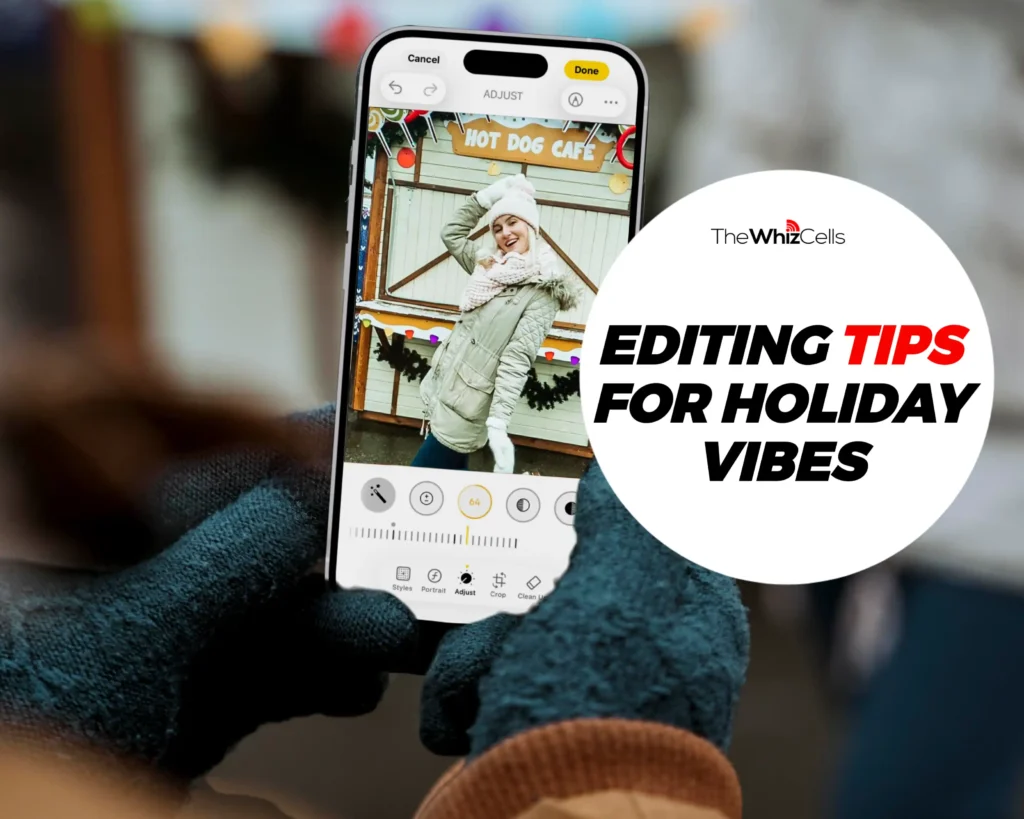 Here are some neat editing tricks to give your Christmas photo that extra holiday-vibe.
- Try increasing the warmth in the photos you take. I personally recommend the dramatic warm filter in the camera app.
- When you are editing the final photo, you should probably add a slight increase to the vibrance of the photo just to help the colours pop.
- If you are feeling a bit adventurous, then you should try and add a bit of grain for nostalgia.
- Lastly, you can reduce highlights to preserve light details.
Conclusion
The season is all about love and oneness, but it’s also a season of reactivity. Don’t be scared to allow the sparks of your creativity to shine through. Remember, it’s more than just the photo; it’s about the emotions you capture and not the perfection.
Faqs on iPhone Camera Tips for Christmas
How to take Christmas photos with iPhone?
Clean your lens first. Use Portrait mode for people and Night mode for Christmas lights. Turn on Live Photos so you can capture natural moments, not stiff poses.
How to set iPhone Xmas camera?
There’s no Christmas mode, but you can prepare your camera. Turn on Grid, set Photographic Style to Warm, keep Flash off, and allow HDR Auto to balance bright lights and dark areas.
What is the best camera setting for Christmas photos?
Use Portrait mode for family photos. Switch to Night mode in low light. Turn on Live Photos and let HDR handle bright trees and dim rooms.
How to take good holiday photos on iPhone?
Shoot near windows during the day. Use Christmas decorations as your background. Avoid digital zoom, move closer instead. Take multiple shots to get the best one.
What is the 20–60–20 rule in photography?
It helps with composition.
20% foreground, 60% main subject, and 20% background. This keeps your Christmas photos balanced and neat.
How to take the perfect Christmas photo?
Choose one main subject. Use warm lighting from Christmas bulbs or lamps. Shoot at eye level and capture real moments like laughter or gift opening.
What is the 3:1 rule in photography?
Your main subject should be brighter than the background. Keep your subject close to the light and let the background stay slightly darker for depth.
How to take pictures like a photographer on iPhone?
Turn on the grid and follow the rule of thirds. Tap to focus and slightly lower exposure. Edit lightly, just adjust warmth and contrast, not heavy filters.
